



 168 Yeung Uk Road, Tsuen Wan, Hong Kong
Americas Datacenters
Providing millions of new IPv4 addresses across 7+ countries in the Americas.
Info contact




Locations: Riga – Latvia
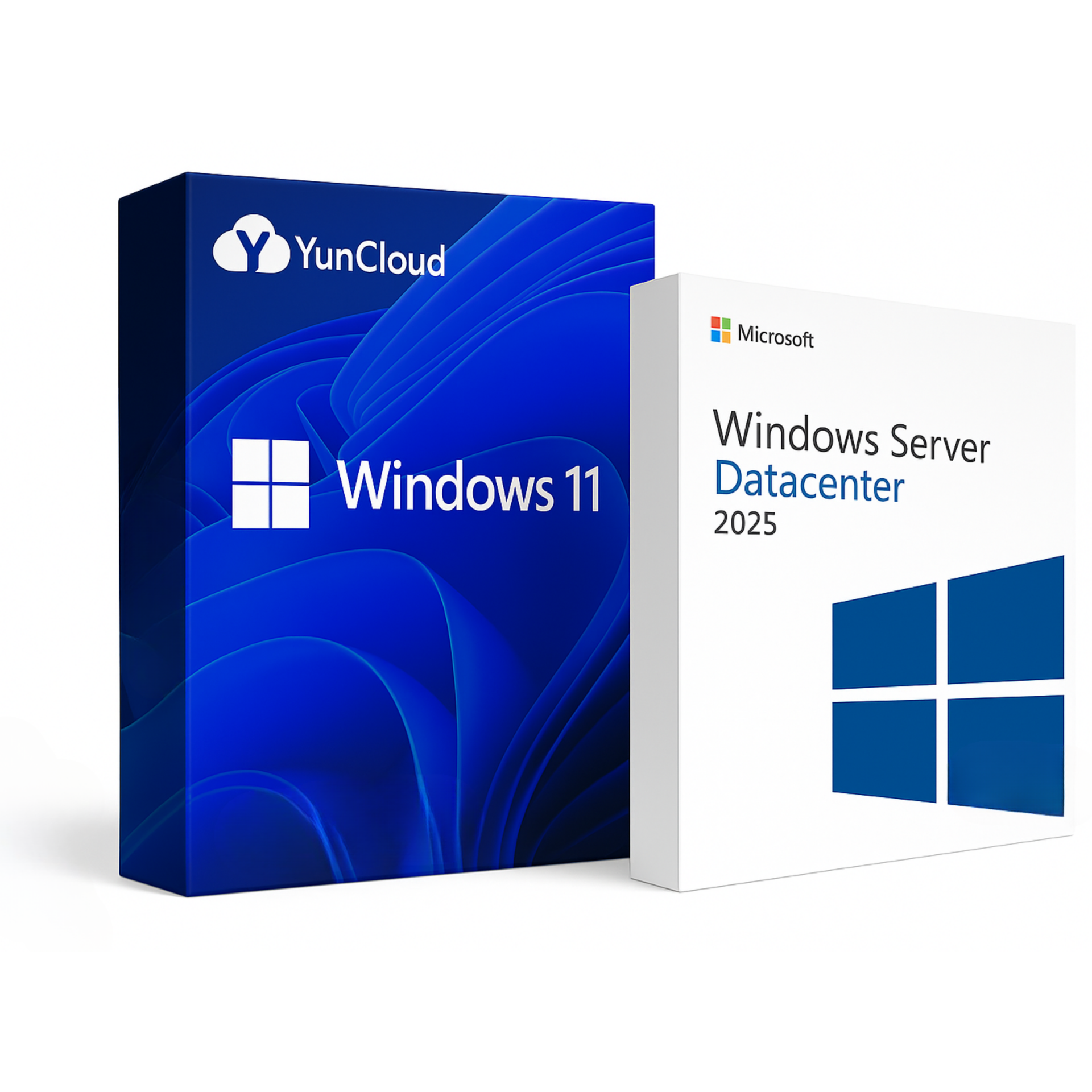
Operating system: Windows 10 Enterprise, Windows 11, and Windows Server editions including 2012, 2016, 2019, 2022, and 2025.
Linux distributions such as Ubuntu, Debian, CentOS, Rocky Linux, Alunix, and more.
Fully automated setup with no hidden fees. Enjoy blazing-fast performance and full control with 24/7 expert support.

Get full control of your Latvia VPS — reinstall OS, change IP, restart server, and automatically fix errors from your dashboard.

Our Latvia VPS uses NVMe SSDs for ultra-fast boot times, stable connectivity, and top-tier performance on both Windows and Linux OS.

High-speed bandwidth up to 1 Gbps. Dedicated IPv4 in major Latvia cities. Easily switch regions when needed.

24/7 support via Skype, Telegram, Messenger, or Live Chat — always here when you need us.

Linux: Ubuntu, CentOS, Debian
 1 vCPU – Intel / AMD EPYC
1 GB RAM
25 GB NVMe SSD
Unlimited Bandwidth
1 vCPU – Intel / AMD EPYC
1 GB RAM
25 GB NVMe SSD
Unlimited Bandwidth
Linux: Ubuntu, CentOS, Debian
2 vCPU – Intel / AMD EPYC
2 GB RAM
40 GB NVMe SSD
Unlimited Bandwidth
Linux / Windows
2 vCPU – Intel / AMD EPYC
4 GB RAM
60 GB NVMe SSD
Unlimited Bandwidth
Linux / Windows
4 vCPU – Intel / AMD EPYC
6 GB RAM
70 GB NVMe SSD
Unlimited Bandwidth
Linux / Windows
4 vCPU – Intel / AMD EPYC
8 GB RAM
90 GB NVMe SSD
Unlimited Bandwidth
Linux / Windows
6 vCPU – Intel / AMD EPYC
10 GB RAM
100 GB NVMe SSD
Unlimited Bandwidth
Linux / Windows
8 vCPU – Intel / AMD EPYC
12 GB RAM
150 GB NVMe SSD
Unlimited Bandwidth
Linux / Windows
10 vCPU – Intel / AMD EPYC
14 GB RAM
170 GB NVMe SSD
Unlimited Bandwidth
Linux / Windows
16 vCPU – Intel / AMD EPYC
16 GB RAM
210 GB NVMe SSD
Unlimited Bandwidth
Linux / Windows
20 vCPU – Intel / AMD EPYC
24 GB RAM
310 GB NVMe SSD
Unlimited Bandwidth
Linux / Windows
24 vCPU – Intel / AMD EPYC
32 GB RAM
410 GB NVMe SSD
Unlimited Bandwidth
Linux / Windows
32 vCPU – Intel / AMD EPYC
64 GB RAM
510 GB NVMe SSD
Unlimited Bandwidth
A step-by-step guide to help you set up and manage your VPS smoothly.


Can’t find the answer you’re looking for?
You can install the Windows operating system on a VPS by uploading an ISO file. However, this process can be complicated. Therefore, all VPS plans we provide come with a pre-installed Windows operating system.
You can choose the Windows version you want to install, and we will provide you with the appropriate VPS configured with that Windows version.
It’s simple. Just open the Remote Desktop Connection app on your computer, then enter the IP address, username, and password provided for your Windows VPS to connect.
Changing the Windows VPS password is very simple, you can do it very quickly using the PowerShell command as follows:
1. Prepare a PowerShell command:
"Net User Administrator YourNewPassword"
Replace “YourNewPassword” with your password.
2. Copy the PowerShell command line above and Paste it to VPS’s PowerShell.
Go to Windows VPS, tap the Start button, open PowerShell, RIGHT click to PowerShell to paste the command line you just copied.
3. Change password successfully when the message “The command completed successfully” appears
You can restart your Windows VPS using the Restart option within the VPS interface, just like on your computer. Alternatively, you can also restart your VPS from our website dashboard.
There are many ways to secure your Windows VPS, usually, we would recommend that our customers do the following to secure VPS:
1. Change the default password for Windows VPS.
2. Change the default RDP port.
3. Periodically scan viruses on the computer to avoid the Keyloger software stealing VPS passwords.

Michael Thompson
Customer
Emily Johnson
Customer
David Miller
Customer
Sophia Wilson
Customer



Providing millions of new IPv4 addresses across 7+ countries in the Americas.

Providing millions of new IPv4 addresses across 35+ countries in the Europe.

Providing millions of new IPv4 addresses across 20+ countries in the Asia.

Providing millions of new IPv4 addresses across 3+ countries in the Africa.

Providing millions of new IPv4 addresses across 2+ countries in the Australia.